
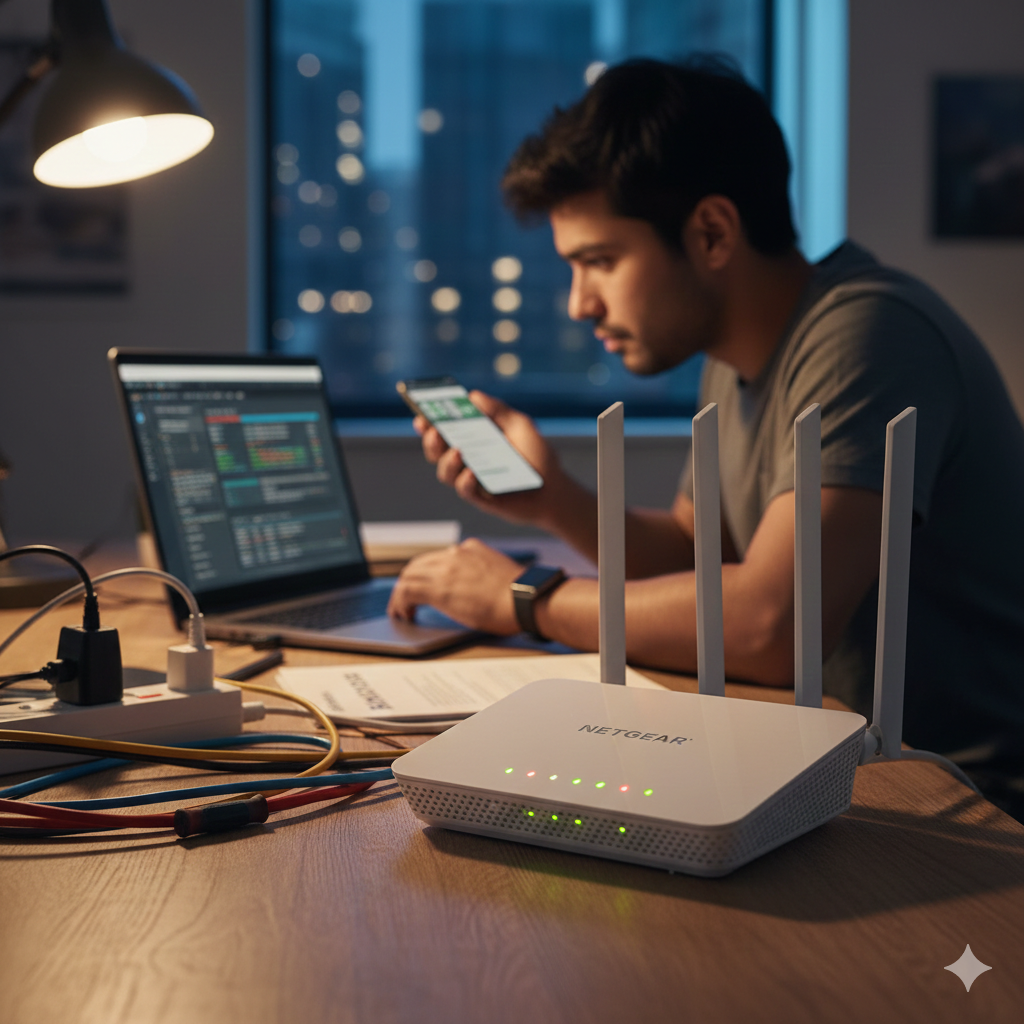
A slow internet connection, random Wi-Fi drops, or a router that simply refuses to connect few tech problems are as frustrating as network issues. If you’re here, chances are you’re looking for troubleshooting Netgear router solutions that actually work, not vague tips you’ve already tried.
Good news: Netgear routers are powerful, reliable devices, and most problems can be fixed at home without calling support or replacing hardware. This guide is written from the perspective of real-world experience, technical expertise, and long-term best practices. It’s designed to help beginners and advanced users alike diagnose issues, apply proven fixes, and keep their network running smoothly.
Let’s break it down step by step.
Understanding Common Netgear Router Problems
Before jumping into fixes, it’s important to understand what usually goes wrong. Most Netgear router issues fall into a few predictable categories.
Internet Connectivity Problems
This includes:
-
No internet access
-
“Connected, but no internet” messages
-
Internet dropping randomly
These issues often stem from ISP problems, incorrect router settings, or outdated firmware rather than hardware failure.
Slow Wi-Fi Speeds
Even with a fast internet plan, poor Wi-Fi performance is common. Causes may include:
-
Interference from nearby networks
-
Incorrect Wi-Fi channel selection
-
Too many connected devices
Router Not Powering On or Freezing
A router that won’t turn on, keeps rebooting, or freezes frequently may be affected by:
-
Faulty power adapters
-
Overheating
Understanding which category your problem falls into makes troubleshooting Netgear router issues far easier.
Basic Checks Before Advanced Troubleshooting
Many router issues are resolved with simple checks. Skipping these often leads to unnecessary complexity.
Restart Everything
It sounds basic, but it works. Restart:
-
Your modem
-
Your Netgear router
-
Your connected devices
Power cycling clears temporary memory errors and refreshes network connections.
Check Physical Connections
Ensure:
-
Ethernet cables are firmly plugged in
-
The WAN/Internet light is solid
-
No cables are damaged or bent
A loose cable can mimic serious router failure.
Confirm ISP Service Status
Sometimes the problem isn’t your router at all. If your ISP is down, no amount of troubleshooting Netgear router settings will help. Check your provider’s status page or contact support.
Accessing the Netgear Router Admin Panel
To properly diagnose issues, you’ll need access to the router’s settings.
How to Log In
-
Connect to your Netgear network
-
Open a browser
-
Enter the router’s local address (commonly 192.168.1.1)
-
Log in using your admin credentials
If you’ve never changed them, they may still be the default ones printed on the router label.
Why the Admin Panel Matters
This dashboard lets you:
-
Update firmware
-
Check connection status
-
Adjust Wi-Fi settings
-
Identify connected devices
It’s the control center for effective troubleshooting.
Fixing No Internet Connection Issues
When your router is powered on but there’s no internet, follow this logical sequence.
Check WAN Status
In the admin panel, look at the Internet/WAN status. If it shows “Disconnected”:
-
Reboot the modem
-
Release and renew the IP address
-
Check if your ISP requires special login settings
Clone MAC Address (If Needed)
Some ISPs lock service to a specific device. Cloning the MAC address of your previous router can instantly restore connectivity.
This is a lesser-known but powerful troubleshooting Netgear router technique.
Resolving Slow Wi-Fi Performance
Slow speeds are one of the most searched router complaints worldwide and for good reason.
Change Wi-Fi Channels
Crowded channels cause interference. Switching to a less congested channel can dramatically improve speed and stability.
Use Dual-Band Wisely
If your router supports both 2.4GHz and 5GHz:
-
Use 2.4GHz for long range
-
Use 5GHz for high-speed, short-range connections
Balancing devices across bands reduces congestion.
Limit Bandwidth Hogs
Streaming, gaming, and large downloads can slow down the entire network. Use Quality of Service (QoS) settings to prioritize essential devices.
Firmware Updates: A Critical Step
Outdated firmware is a silent performance killer.
Why Firmware Matters
Firmware updates:
-
Fix bugs
-
Improve security
-
Enhance compatibility with new devices
Many connectivity issues disappear immediately after an update.
How to Update Safely
-
Use the router’s built-in update feature
-
Never power off during an update
-
Restart after completion
From an expert perspective, regular firmware updates are one of the most important troubleshooting Netgear router practices.
Fixing Wi-Fi Drops and Random Disconnects
If your connection drops unpredictably, look beyond basic settings.
Overheating Issues
Routers generate heat. Poor ventilation can cause instability.
Solution:
-
Place the router in an open area
-
Avoid stacking devices
-
Keep it away from direct sunlight
Too Many Connected Devices
Every router has limits. Smart homes can easily exceed them.
Disconnect unused devices and consider upgrading if needed.
Netgear Router Keeps Rebooting
Frequent reboots are a red flag.
Common Causes
-
Power adapter problems
-
Firmware corruption
-
Hardware degradation
Solutions
-
Replace the power adapter
-
Perform a factory reset
-
Reinstall firmware manually
If reboots persist after these steps, hardware replacement may be necessary.
Factory Reset: When and How to Use It
A factory reset should be a last resort but it’s effective.
When to Reset
-
Persistent configuration errors
-
Forgotten admin password
-
Severe performance degradation
How to Reset
Press and hold the reset button for 10–15 seconds until the lights flash.
Be aware: this erases all custom settings.
Security Issues and Unauthorized Access
Unexpected slowdowns may be caused by unknown users.
Check Connected Devices
Look for unfamiliar devices in the admin panel.
Secure Your Network
-
Change Wi-Fi passwords
-
Use WPA2 or WPA3 encryption
-
Disable WPS if not needed
Security-focused troubleshooting Netgear router steps protect both performance and privacy.
Advanced Diagnostics for Power Users
For those comfortable with deeper settings:
Check System Logs
Logs reveal:
-
Connection drops
-
Authentication failures
-
Firmware errors
Test with Ethernet
If wired connections are stable but Wi-Fi isn’t, the issue is wireless-specific not your ISP.
This distinction saves hours of guesswork.
When to Contact Netgear Support
Sometimes professional help is justified.
Contact Support If:
-
The router won’t power on
-
Firmware updates fail repeatedly
-
Hardware faults are suspected
Have your model number, firmware version, and error details ready for faster assistance.
Expert Tips to Prevent Future Router Issues
Prevention is always easier than repair.
Best Practices
-
Reboot monthly
-
Update firmware quarterly
-
Change Wi-Fi passwords annually
-
Monitor connected devices
These habits significantly reduce the need for troubleshooting Netgear router problems in the future.
Conclusion
Effective troubleshooting Netgear router issues isn’t about random fixes it’s about understanding how networks work and applying solutions logically. From basic restarts to advanced diagnostics, most problems can be resolved with patience and the right approach.
Netgear routers are built for performance and longevity. With proper setup, maintenance, and security, they can deliver stable, fast internet for years. Use this guide as your go-to reference whenever your network acts up and you’ll spend far less time frustrated and far more time connected.
Frequently Asked Questions (FAQs)
1. Why does my Netgear router have internet but no Wi-Fi?
This usually points to wireless settings issues. Restart the router, check SSID settings, and ensure Wi-Fi is enabled.
2. How often should I update my Netgear router firmware?
Experts recommend checking for updates every 2–3 months to maintain performance and security.
3. Does factory resetting improve router speed?
Yes, if slow speeds are caused by corrupted settings or misconfigurations.
4. Can too many devices slow down my Netgear router?
Absolutely. Each router has a device limit, and exceeding it impacts performance.
5. When should I replace my Netgear router?
If hardware failures persist, reboots continue after resets, or the router is over 5–6 years old, replacement may be the best option.
