
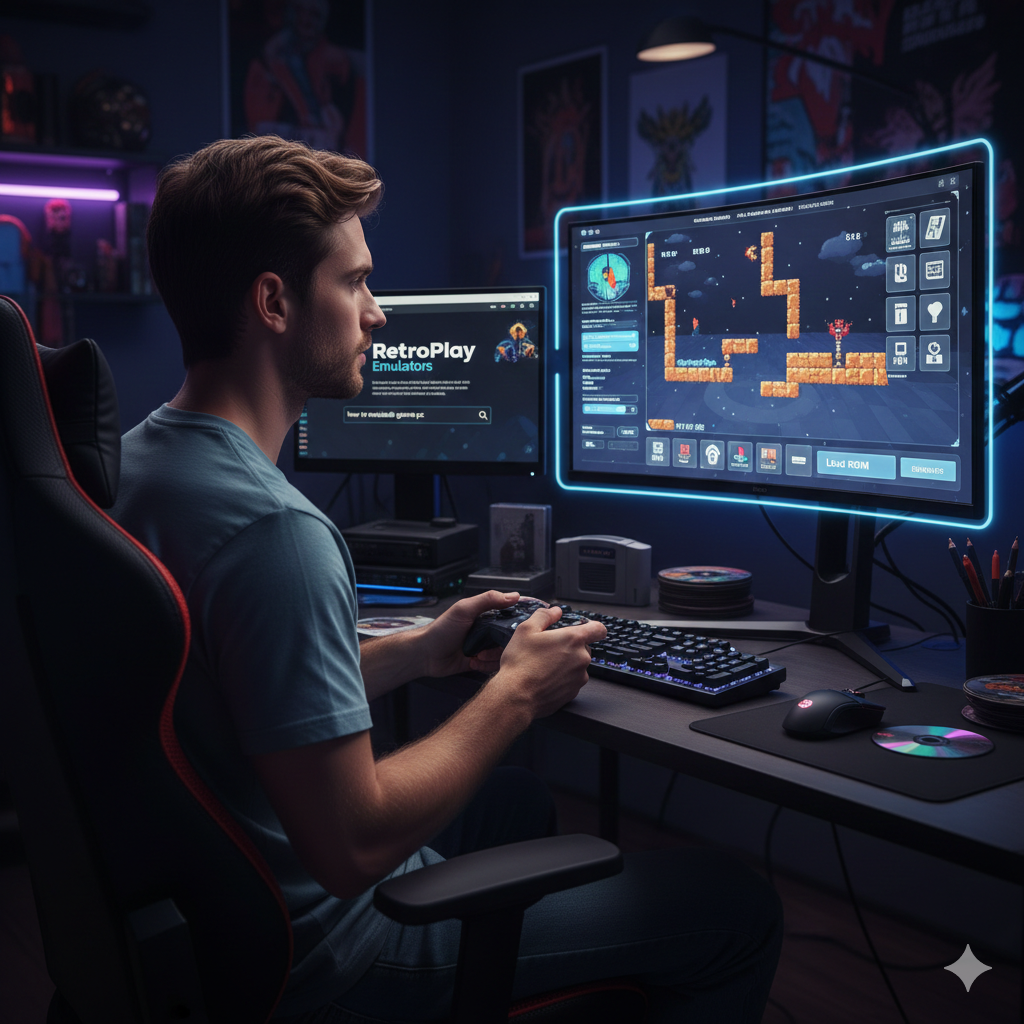
Introduction to Game Emulation
If you ever wished you could play classic console games on your computer you are not alone. Many gamers want to relive childhood memories or experience older titles they missed. Learning how to emulate games on PC opens the door to thousands of games across different consoles all from one device.
What Is a Game Emulator
A game emulator is software that mimics the hardware of a console or system. It allows your PC to behave like that console so the game can run as if it were on original hardware. Think of it like a translator that helps your computer understand a different gaming language.
Is Emulating Games on PC Legal
Legal Grey Areas Explained
Emulation itself is legal in many countries. The emulator software is usually allowed. The legal issue often comes from downloading copyrighted game files without owning them.
ROM Ownership Rules
If you own a physical copy of a game creating a backup ROM for personal use is considered legal in some regions. Downloading games you do not own is usually against copyright laws.
System Requirements for Game Emulation
Minimum PC Requirements
Basic emulation for older consoles can run on low end systems. A dual core processor 4GB RAM and integrated graphics can handle retro games easily.
Recommended Hardware for Smooth Performance
For modern console emulation you will need a stronger PC. A quad core processor dedicated graphics card and at least 8GB RAM will give better results and smoother gameplay.
Best Emulators for PC
Console Emulators
Popular console emulators include options for PlayStation Nintendo and Xbox systems. These emulators are updated regularly and offer strong compatibility.
Handheld Emulators
Handheld systems like Game Boy PSP and Nintendo DS are easy to emulate and run well even on modest PCs.
Arcade and Retro Emulators
Arcade emulators allow you to play classic coin operated games. Retro emulators bundle multiple old consoles into one program for convenience.
How to Emulate Games on PC Step by Step
Choosing the Right Emulator
Start by selecting an emulator that matches the console you want to play. Always download from the official website to avoid malware.
Downloading and Installing Emulator
Download the emulator install it and follow setup instructions. Most emulators are simple to install and beginner friendly.
Finding and Loading Game Files
Game files are usually called ROMs or ISOs. Load them through the emulator menu. Make sure the files match the emulator requirements.
Controller Setup
Most emulators support keyboard and game controllers. Mapping buttons improves comfort and gives a console like experience.
Best Settings for Smooth Gameplay
Graphics Settings
Adjust resolution and rendering settings based on your PC power. Lower settings improve performance while higher settings improve visuals.
Audio and Performance Tweaks
Enable audio sync and limit frame rates to reduce stutter. Small tweaks can make a big difference in gameplay quality.
Common Emulator Problems and Fixes
Slow performance often means hardware limitations or incorrect settings. Crashes can be fixed by updating emulator versions or using compatible game files. Audio glitches usually improve after adjusting sound buffers.
Tips for Better Emulation Experience
Keep emulators updated
Use original controllers when possible
Save frequently using emulator save states
Join emulator communities for support
These tips help avoid frustration and improve enjoyment.
Conclusion
Learning how to emulate games on PC is easier than ever. With the right emulator proper settings and legal awareness you can enjoy classic and modern games on one powerful system. Emulation preserves gaming history and gives players endless entertainment at their fingertips.
FAQs
1. Is emulating games on PC safe
Yes if you download emulators from official sources.
2. Can low end PCs run emulators
Yes older consoles run well on low end systems.
3. Do I need a controller for emulation
No but controllers improve gameplay experience.
4. Why do some games run slow
Performance depends on hardware and emulator settings.
5. Can I use emulators on Windows only
No emulators also work on Linux and macOS.
